
Hi.My name is Selfless.I am runing a company which focus on online game products and services.
I am intrested in the guest posts/articles that you are post on the private blogs & private sites.
College Football 27 Guide: Best Features and How to Use Them
Jun-18-2026 PST
Category:
College Football 26
College Football 27 introduces several gameplay systems that can improve play-calling, team management, and on-field execution. This guide focuses on how to use these features effectively with clear, step-by-step instructions.
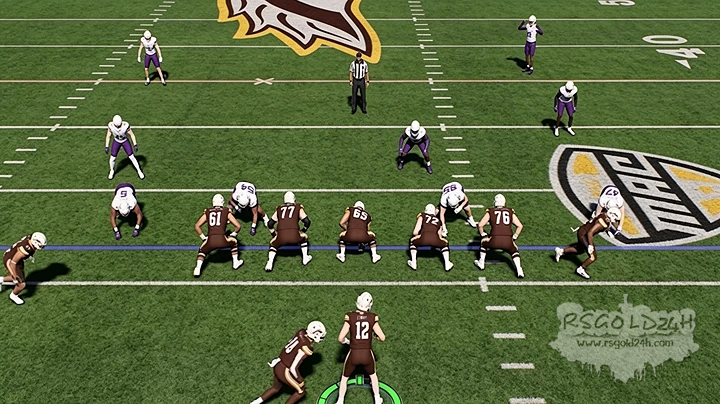
Use Coach Mode for a Strategy-Focused Experience
Coach Mode allows you to manage the game as a head coach rather than controlling players directly.
Steps:
Start a game and select Coach Mode.
Choose whether to manually snap the ball or let the CPU handle snaps.
Select plays using coach suggestions or your own playbook.
Make pre-snap adjustments before the communication window closes.
Monitor the game from the coaching perspective and focus on decision-making.
Best For: Players who enjoy play-calling, roster management, and realistic game planning.
Create Formation Shifts Before the Snap
Formation shifts can disguise your intentions and force the defense to adjust.
Steps:
Select a play from your offensive playbook.
Enter the pre-snap adjustment menu.
Choose a formation shift option.
Line up in the initial formation.
Allow players to shift into the final formation before snapping the ball.
Benefit: Creates mismatches and makes it harder for defenders to predict the play.
Master the Different Tackling Types
Using the correct tackle type improves defensive consistency.
Steps:
Approach the ball carrier under control.
Use the right stick to select a tackle:
Up: Hit Stick
Down: Cut Tackle
Left: Lunge Tackle
Right: Wrap Tackle
Choose the tackle based on the situation.
Practice each tackle type in training mode.
Recommended Usage:
Wrap Tackle for reliability.
Lunge Tackle for chasing runners.
Hit Stick for forcing mistakes.
Cut Tackle against fast ball carriers.
Neutralize the Opponent's Top Receiver
Defensive coverage adjustments can limit big passing plays.
Steps:
Open the Coaching Adjustments menu.
Locate coverage-roll settings.
Select the receiver you want the defense to prioritize.
Apply the adjustment.
Combine it with double coverage when necessary.
Benefit: Reduces opportunities for explosive gains through the air.
Defend Crossing Routes with Cross-Man Coverage
Crossing routes are common passing concepts that can be difficult to stop.
Steps:
Identify the receiver running crossing routes most frequently.
Open defensive adjustments.
Assign cross-man coverage to the defender responsible for that receiver.
Verify the matchup before the snap.
Monitor results and adjust if needed.
Benefit: Helps defenders stay attached to receivers across the field.
Improve Run Blocking with ID the Mike
Adjusting blocking assignments can create better rushing lanes.
Steps:
Hold the pre-snap blocking adjustment button.
Display the blocking assignments.
Identify the defender causing the most problems.
Use the ID the Mike feature on that defender.
Review the new assignments before snapping the ball.
Tip: Test different assignments when facing aggressive linebackers.
Build a Game Plan Around Expanded Playbooks
The larger playbooks provide more formation and scheme options.
Steps:
Review your team's offensive and defensive playbooks.
Select several formations that match your roster strengths.
Learn a small group of plays from each formation.
Create a consistent game plan.
Add new formations as you become comfortable.
Benefit: Gives you more flexibility without overwhelming your play-calling.
Track Dynasty Updates During Games
Staying informed about league-wide results can help with long-term planning.
Steps:
Check halftime updates.
Review scores from ranked teams and conference rivals.
Monitor playoff and conference standings.
Adjust your season goals based on current results.
Benefit: Keeps you informed about the bigger picture throughout the season.
Manage Recruiting Efficiently
Strong recruiting is essential for long-term Dynasty success.
Steps:
Open the recruiting board each week.
Identify your highest-priority prospects.
Allocate recruiting hours to those players first.
Monitor competing schools.
Reassign resources when a recruit becomes difficult to sign.
Tip: Focus on quality targets instead of spreading resources too thin.
Customize Camera Settings
The right camera angle can improve visibility and gameplay performance.
Steps:
Open Settings.
Navigate to Camera Options.
Select your preferred offensive and defensive views.
Test different zoom and height settings.
Save the setup that provides the clearest field view.
Benefit: Makes it easier to read defenses and locate receivers.
Personalize Player Equipment
Equipment customization allows you to create a unique team appearance.
Steps:
Open the player customization menu.
Select a player.
Edit equipment such as visors, towels, gloves, and sleeves.
Save the changes.
Repeat for additional players if desired.
Benefit: Improves visual immersion and team identity.
Final Tips
Use Coach Mode to learn new offensive and defensive systems.
Mix formation shifts into your play-calling to stay unpredictable.
Learn all tackle types rather than relying on one method.
Adjust coverage toward elite receivers whenever possible.
Use ID the Mike before important running plays.
Review recruiting and Dynasty updates every week.
Mastering these features will help you make better decisions, execute plays more effectively, and build a stronger program throughout your College Football 27 career. A sufficient reserve of CUT 26 Coins can also help you to build your equipment more smoothly and rationally.
ABOUT ME
BANNER

RECENTLY READ
-
FC 26 El Kaiser Evolution: Top Players You Shouldn't Miss
Jun-13-2026 PST /FC 26